

Wi-Fi on planes: check your flight and get connected
Check the actual flight, understand the access offered and connect using the crew’s instructions, with essential travel details ready offline.
Language
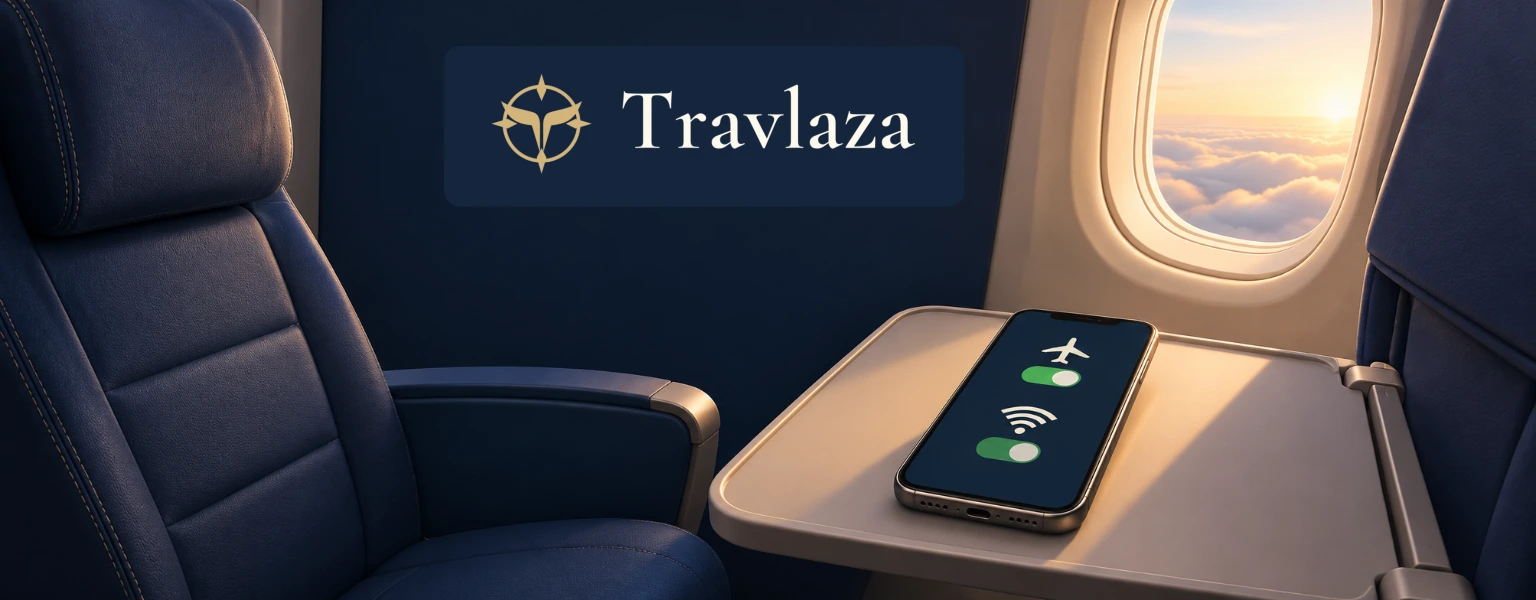
To find out whether your flight has Wi-Fi, check the operating airline’s information for that particular flight and date, then confirm the service on board. When the crew permits it, keep airplane mode on, turn Wi-Fi back on separately and join the airline’s onboard network. You do not need to restore cellular service to use an approved aircraft Wi-Fi connection.
The other question is what that connection lets you do. Sending a text, opening a website and downloading an attachment may require different access. Before choosing a flight or paying for a package, identify the task you actually need and match it to the service offered on each leg.
Check your flight, not just the airline’s fleet
Start with the date, flight number and airline operating the aircraft. If your itinerary has a connection, treat the two flights separately: the service on the first plane does not establish what the second will offer. Look for flight-specific information in the operating airline’s booking details, flight information or pre-departure messages rather than relying on a general advertisement about its fleet.
American Airlines directs passengers to check their boarding pass or its online flight information for Wi-Fi availability before reaching the airport. Delta points to a Wi-Fi badge in eligible results on its own booking website and information in a pre-flight email. These are airline-specific ways to investigate the service; they do not mean every booking website displays the same badge.
Keep the answer provisional until you board. Emirates explains that products can vary with the route and aircraft configuration, and that operational needs may cause an aircraft change at short notice. Delta also notes that connecting flights may use different Wi-Fi systems. If internet access matters to your decision, ask about the actual itinerary rather than whether the airline offers Wi-Fi somewhere.
Once you have narrowed down the journey and know what connectivity to confirm with the airline, compare flights for your trip. Travlaza helps you compare flights; the selected airline or agency handles booking, payment and ticket support. The onboard connection is supplied under the operating airline’s service.
Choose access for the task you need
Read the package description before selecting it. Look for the activities included, any membership requirement and which service is available on your aircraft. A label such as ‘messaging’ describes a narrower task than general internet access. A benefit described as free may still depend on an eligible flight and signing in to the airline’s loyalty account.
Does a messaging package let me browse websites?
Not necessarily. British Airways distinguishes text messaging and email without attachments from its broader browsing package, which includes more internet use and attachments. Other airlines set their own package terms. If you need to open a website or retrieve a file, choose access that explicitly covers that task rather than assuming a messaging benefit will do it.
For a hypothetical example, suppose you only want to tell someone when to collect you. A suitable messaging option may meet that need. If you also need to download a document, look for attachment or broader browsing access before paying. Naming the second task helps you avoid choosing a package that handles your message but leaves the document inaccessible.
Membership benefits also need their conditions. American describes free access through an AAdvantage login on eligible flights. Delta’s free SkyMiles access applies to equipped Delta Sync flights, while other aircraft may have different paid access or messaging options. Emirates likewise describes a mixture of plans and conditional benefits. Use your flight’s offer to decide, rather than treating one airline’s benefit as an industry rule.
Prepare while you still have a ground connection
If you intend to use a membership benefit, sign in to the relevant account before boarding and resolve any access problem then. This matters particularly with Delta: its guidance says a locked SkyMiles account cannot be unlocked in flight for free Wi-Fi use. A paid flight pass may be available, but resolving the account on the ground gives you a clearer choice.
Save the travel details you will need without a connection: your itinerary, accommodation address and any documents you are permitted to keep locally. Make sure the files actually open on your device. Boarding-pass acceptance depends on the airport and airline, so saving an image is not a substitute for following their document instructions. Our guide to online check-in and airport preparation covers the wider departure preparations.
If you hoped to finish essential work during the flight, prepare an offline version too. Emirates states that communication may be unavailable over some countries and does not guarantee fault-free service. The useful fallback is a task you can continue without internet, rather than a promise that buying the broader package will make an important deadline achievable.
Connect with cellular service still disabled
Follow the crew’s instructions on when devices and Wi-Fi may be used. US FAA passenger guidance calls for airplane mode or disabled cellular service, and allows Wi-Fi only where the aircraft has the system and the airline permits it. Elsewhere, follow the operating airline and crew rather than applying FAA guidance as a worldwide legal rule.
- Leave airplane mode on, then enable Wi-Fi separately when the crew permits it.
- Select the onboard network identified by the airline or crew.
- Open the official onboard connection page if it does not appear automatically; use the address supplied for that flight.
- Sign in or choose the appropriate access, then read the package terms before confirming any payment.
American and Delta both describe connection sequences that begin with airplane mode followed by Wi-Fi. Network names and portals are specific to the airline and system. British Airways is also introducing a new system alongside its existing service, so an older instruction about a network name or when access starts may not fit every BA flight. Use the instructions provided on your aircraft.
What if I am connected to Wi-Fi but the portal will not open?
Keep cellular service disabled. Confirm that you selected the correct onboard network and ask the crew for the official portal and whether the service is currently available. British Airways supplies an alternative portal address for its own service when the automatic page fails; that is not a universal address. Tell the crew whether you cannot find the network, cannot open the portal or cannot sign in, so they can identify the relevant problem.
If the portal opens but the activity you need does not work, compare it with the access you selected before buying anything else. An account issue, an unsuitable package and unavailable connectivity require different answers. Ask which applies on your flight; switching mobile data back on is not the solution to an aircraft Wi-Fi problem.
More travel guides
Flying with skis: count the boot bag before booking
A practical way to measure, weigh and price skis or a snowboard together with a boot bag before buying your flights.

Flying with golf clubs: plan your checked bag before booking
Choose a suitable case, weigh the packed golf bag and compare both directions of the journey before paying for a flight.
Flying with fishing rods: carry-on or checked baggage?
Measure the packed rod case, choose cabin or checked carriage, and compare the full baggage cost. Delta and American show how the decision can change.